
Mobile App
A complete guide to running and managing nikcli from the Expo app in packages/mobile against a host server.
Overview
The nikcli mobile app is an Expo / React Native client that drives a running
nikcli mobile host over its /mobile/* HTTP + SSE API. You start a
host on your machine (or a cloud platform), pair the app with a token, and then work from your
phone: run agent sessions, approve tool actions, review diffs, import GitHub repos, manage
routines and loops, and open interactive terminals.
The app is organized into six tabs plus Settings and Profile:
Sessions
Create and resume agent sessions with live SSE streaming, plan/code modes, approvals, and diffs.
Repos
Server worktrees and GitHub repos — import, sandbox, and launch GitHub-backed sessions.
Terminal
Fully interactive PTYs running on the host, with multiple tabs and copy/paste.
Routines
Create, run, pause, and resume scheduled or API-triggered routines.
Loops
Create, run, pause, and resume multi-stage Loops that fire on a schedule or on demand.
Settings & Profile
Providers, connectors, MCP, skills, agents, commands, memories, tokens, plugins, and account.
App preview
The Expo app is built for one-handed control of a running nikcli host. Pair it over a QR code, then drive sessions, terminals, repos, routines, loops, and settings from the same surface you already use to check your messages.
Run nikcli from anywhere.
One app, six tabs, every surface of your host in your pocket. Pair once over
nikcli://, then stream sessions, approve tool calls, browse your worktrees,
and ship a pull request without opening a laptop.
- Live SSE streaming
- Plan / Code modes
- Multi-tab PTY
- Offline queue
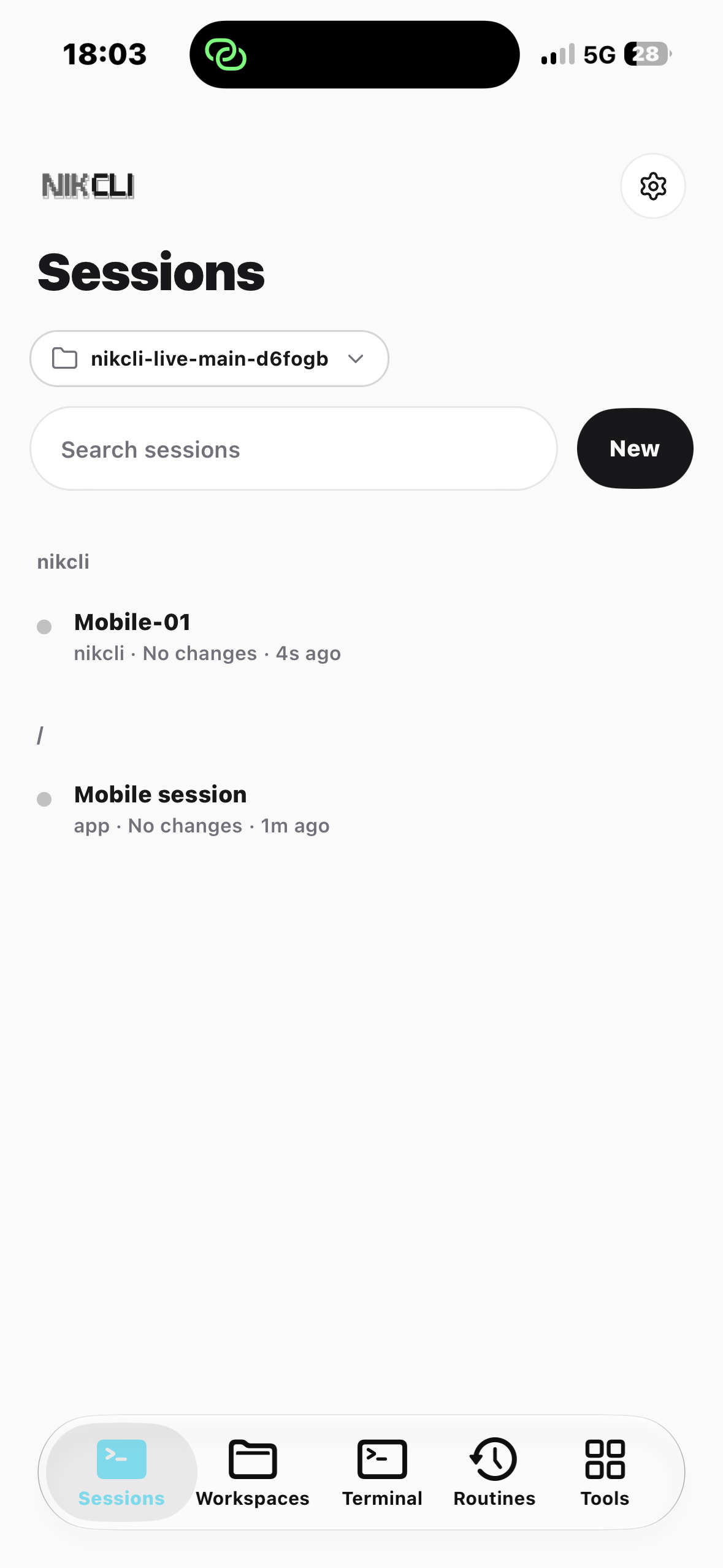
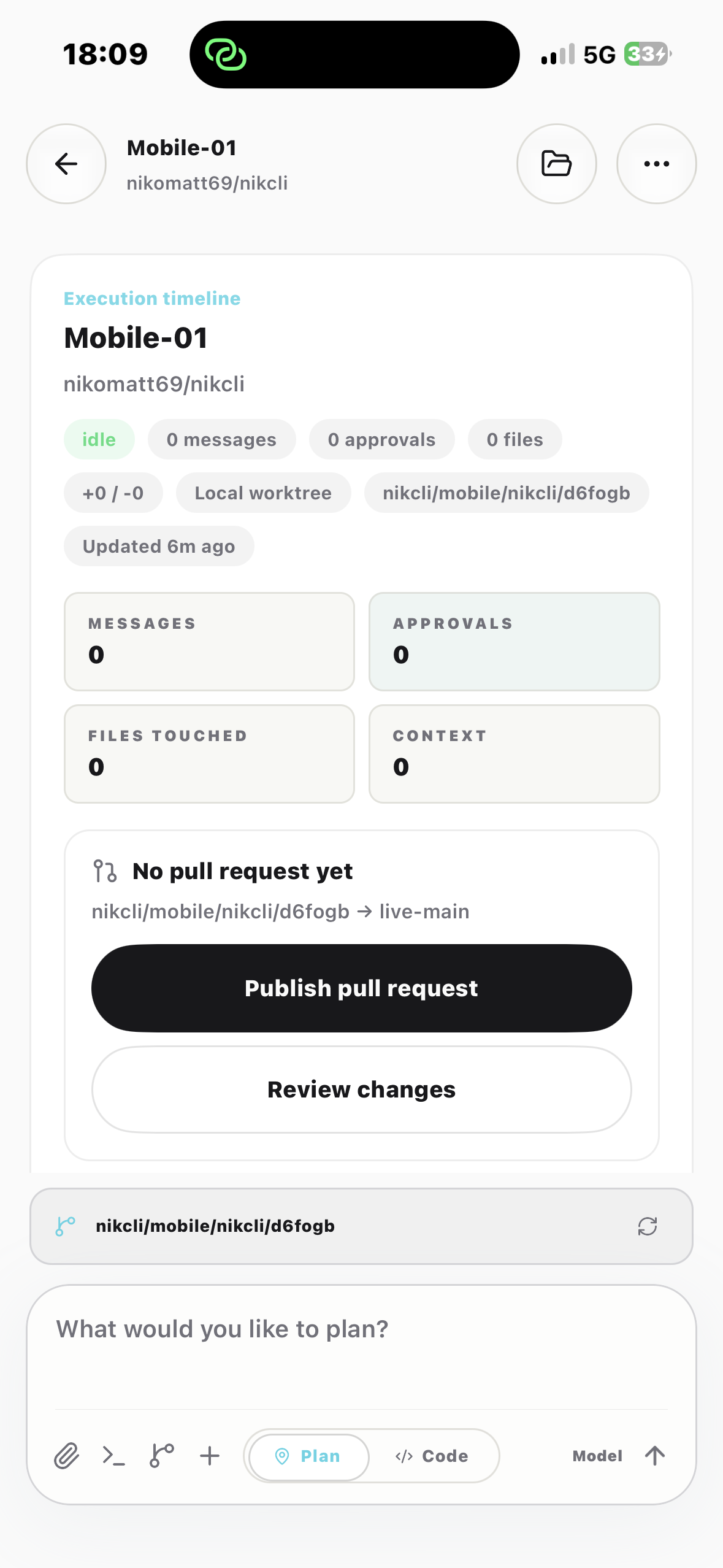
Stream agent output, on the go.
A scrollable transcript above a fixed composer with attach, command palette, Git review, and tool drawer shortcuts. Toggle Plan to think before acting, or Code to send as-is. Slash commands surface inline with skill / MCP / arg badges.
Replies stream over SSE with reasoning, text, tool cards, and — when present — a per-message cost and token count.
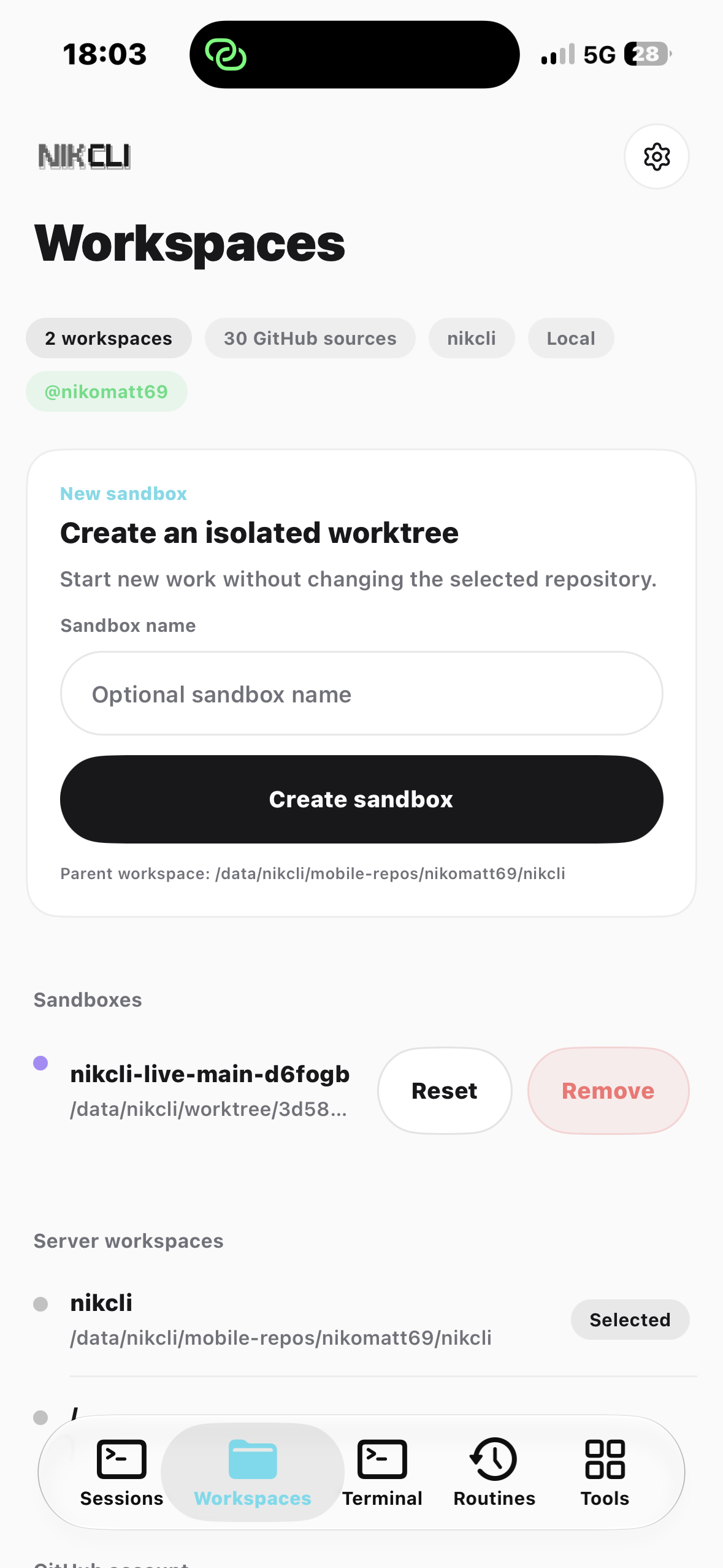
One portfolio for every worktree.
The Workspaces tab merges server worktrees and GitHub repos in one view, with a summary card showing live counts, the active worktree, the execution target, and your GitHub login.
Provision a fresh isolated sandbox, import a repo with one tap, or walk through a guided 3-step launch (repo → branch → session) without leaving the app.
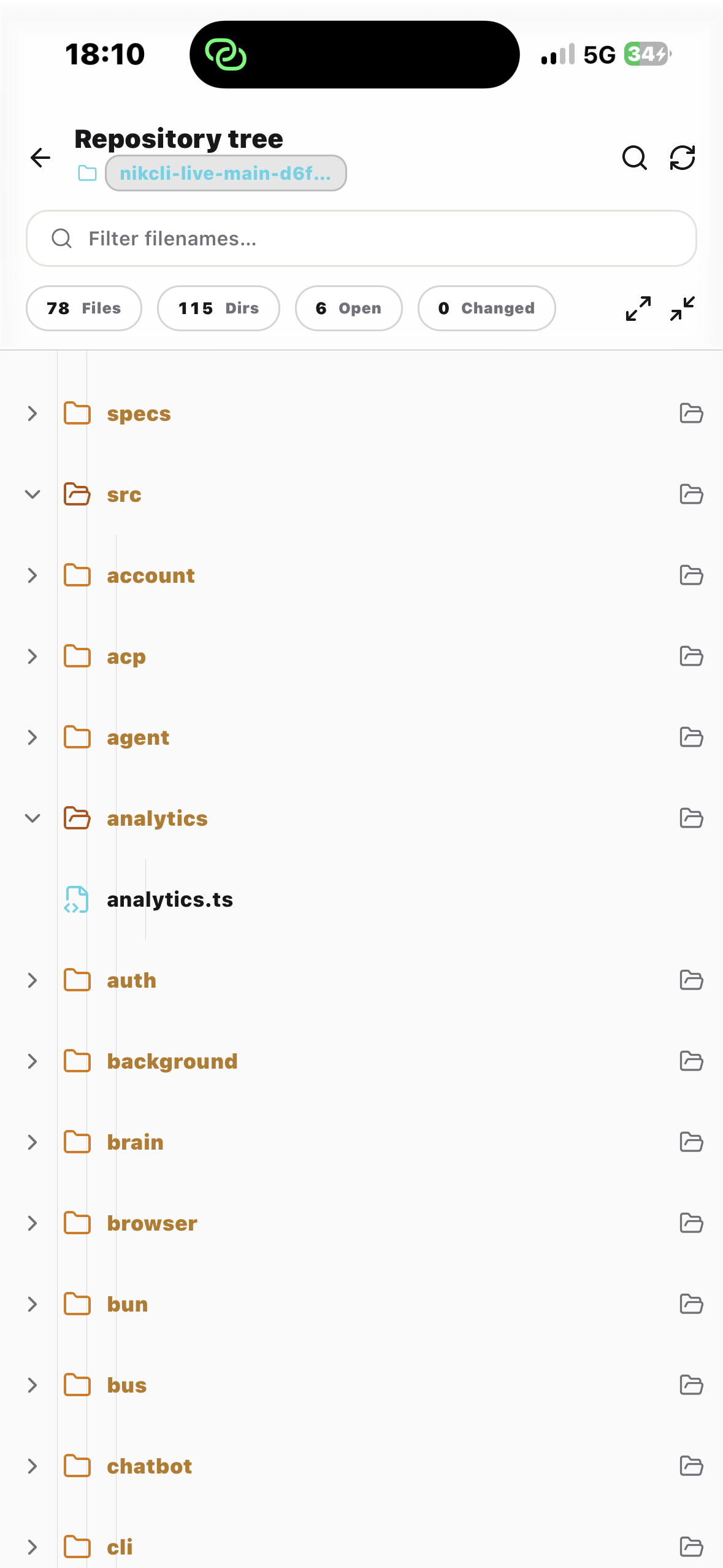
Browse, search, and open files.
The Repository tree shows every folder under the active worktree with git status markers (A / M / D), a fuzzy filename filter, ripgrep-backed workspace search, and stat chips for files, dirs, open, and changed.
Tapping a file opens the in-app editor with syntax highlighting, find-in-file, copy, and a View/Edit toggle — large files over ~5,000 lines open read-only.
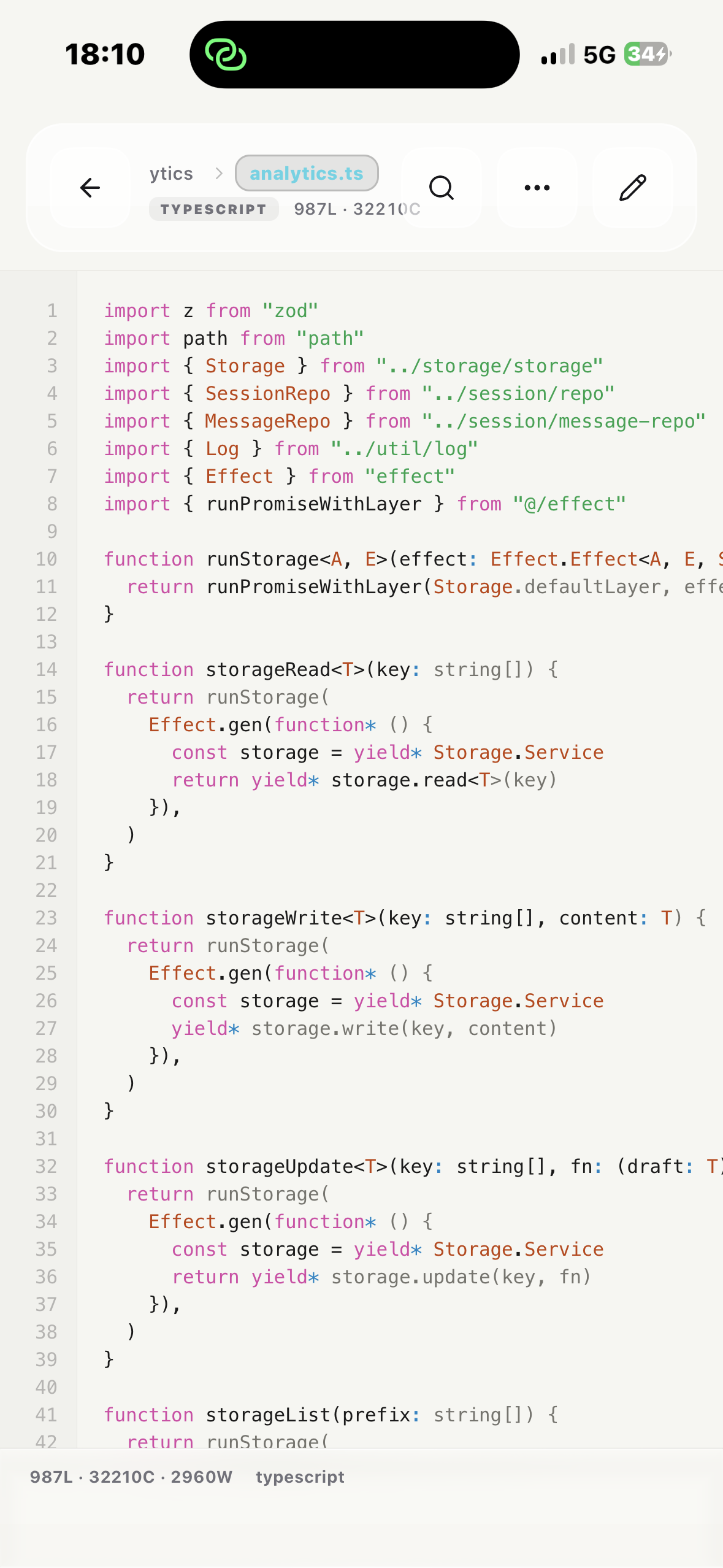
A real editor, in your pocket.
Syntax-tinted code, line numbers, breadcrumbs, and a TYPESCRIPT chip with live line and character counts. Edits stay local until you tap Save, which writes the file back to the host; leaving with unsaved changes prompts Save, Discard, or Cancel.
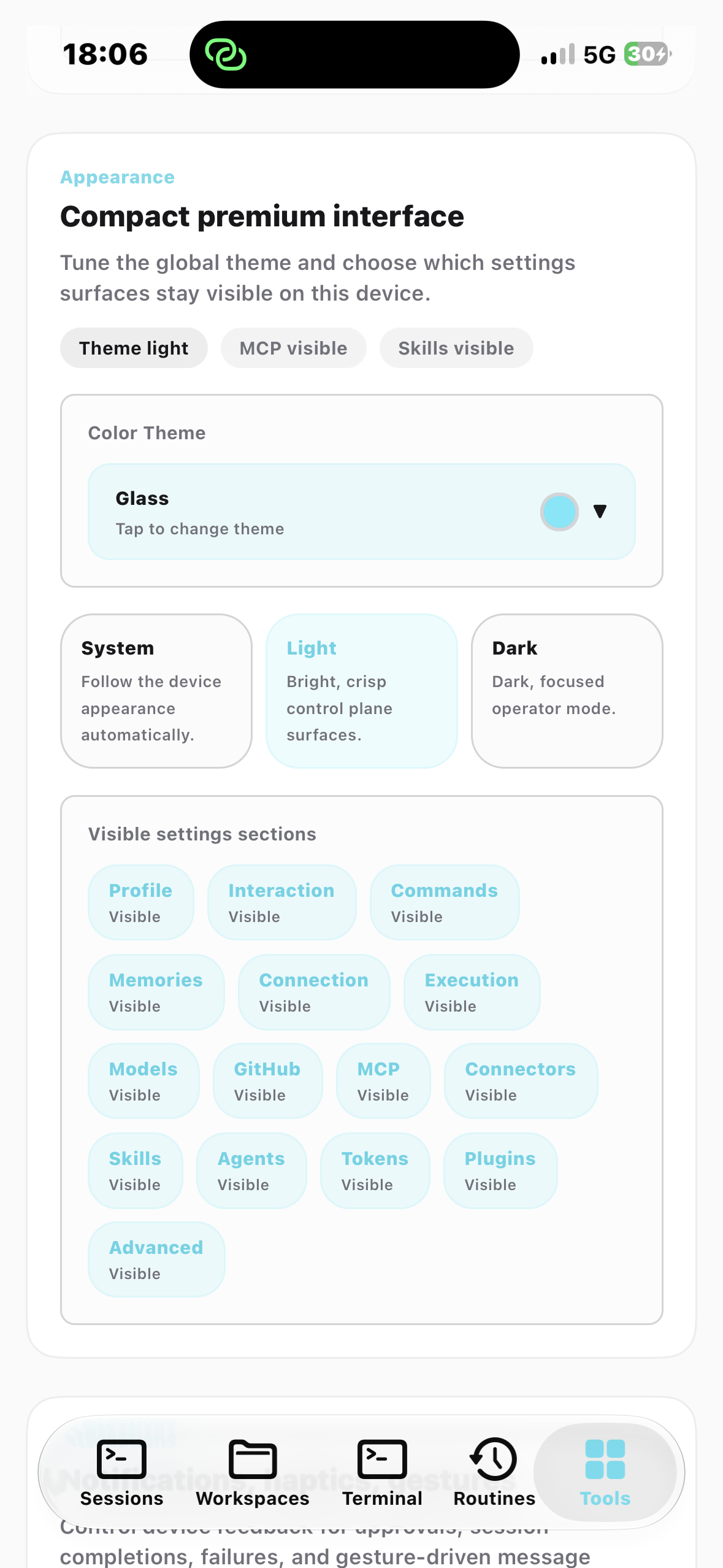
Make it yours.
100+ named color themes (Nikcli default, Nord, Dracula, Tokyo Night, Catppuccin, Gruvbox, Solarized, GitHub, One Dark, Kanagawa, Rose Pine…). System / Light / Dark mode and the theme apply instantly and persist on the device.
Toggle which Settings sections stay visible — Profile, Interaction, Commands, Memories, Models, GitHub, MCP, Connectors, Skills, Agents, Tokens, Plugins, Advanced — and switch them per device.
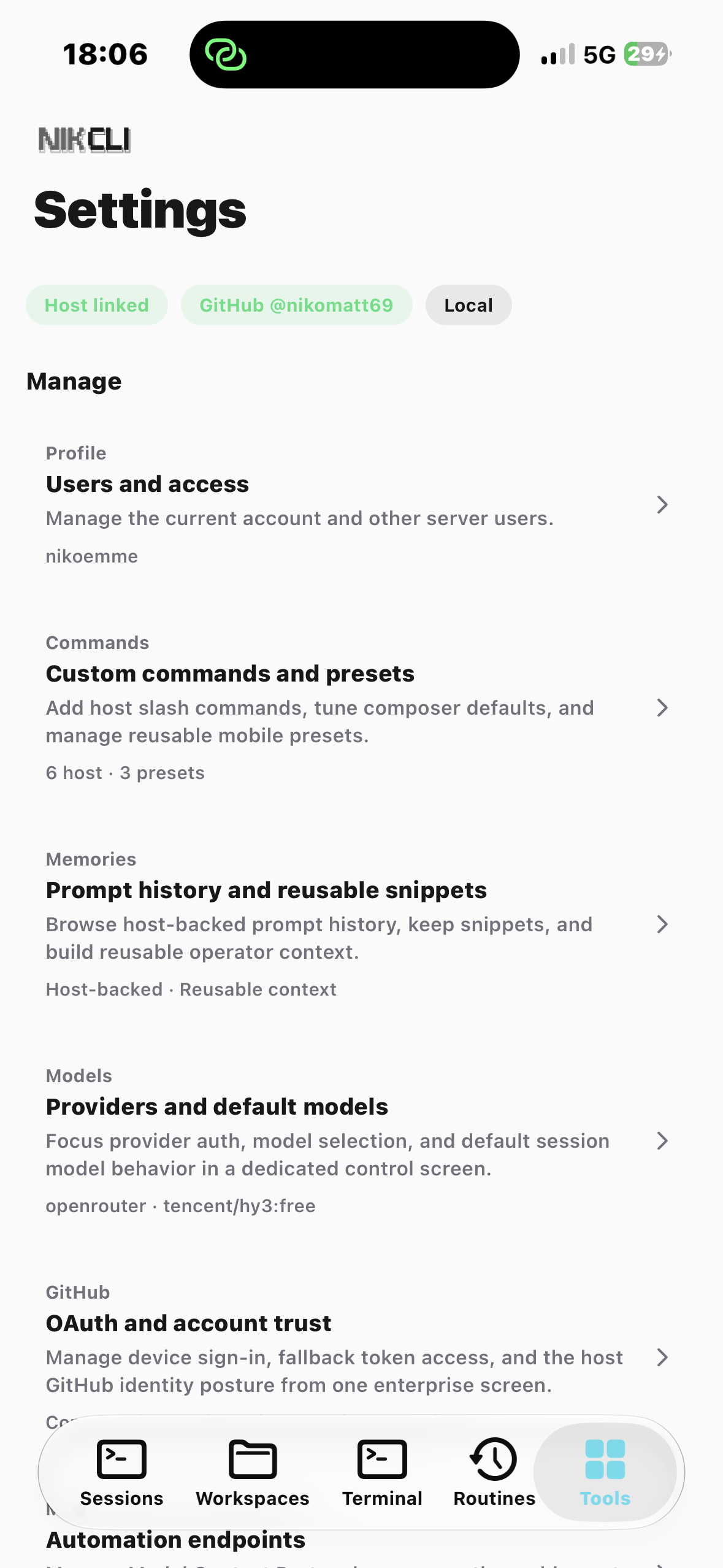
One control plane for everything.
Providers, connectors, MCP servers, skills, agents, slash commands, memories, mobile tokens, plugins, connection, execution target, Git identity, and teleport defaults — all under one scrolling control plane.
Provider and model defaults flow through the host catalog; the app caches the catalog so the composer preselects the right model even before the network round-trip completes.
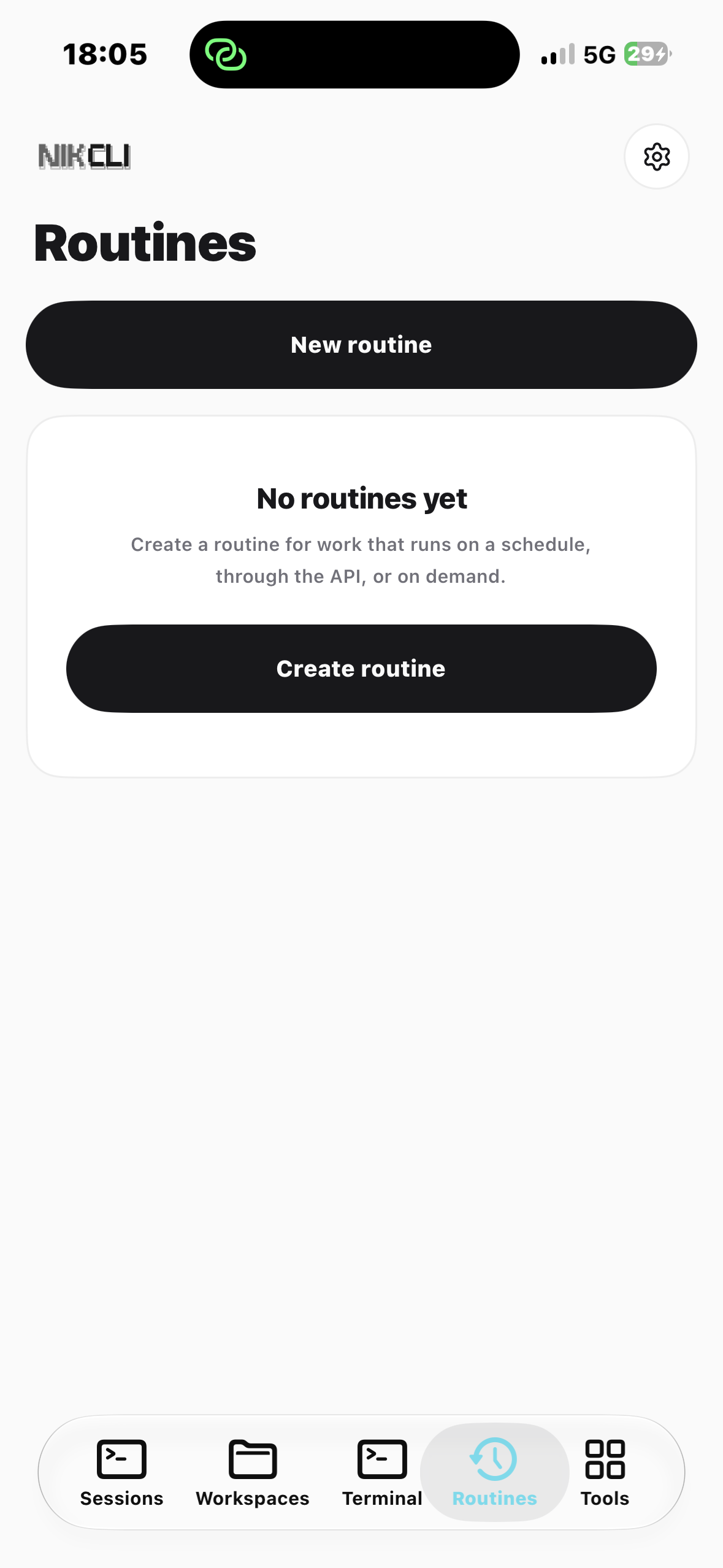
Schedule the boring work.
Saved prompts that run as sessions — on a cron schedule, via an HTTP webhook, or on demand. Each routine has a status chip, a trigger summary, the last-run time, and Run now / Edit buttons right from the list.
The API trigger endpoint is assigned by the host at create time, so external systems can fire a routine with no bearer token.
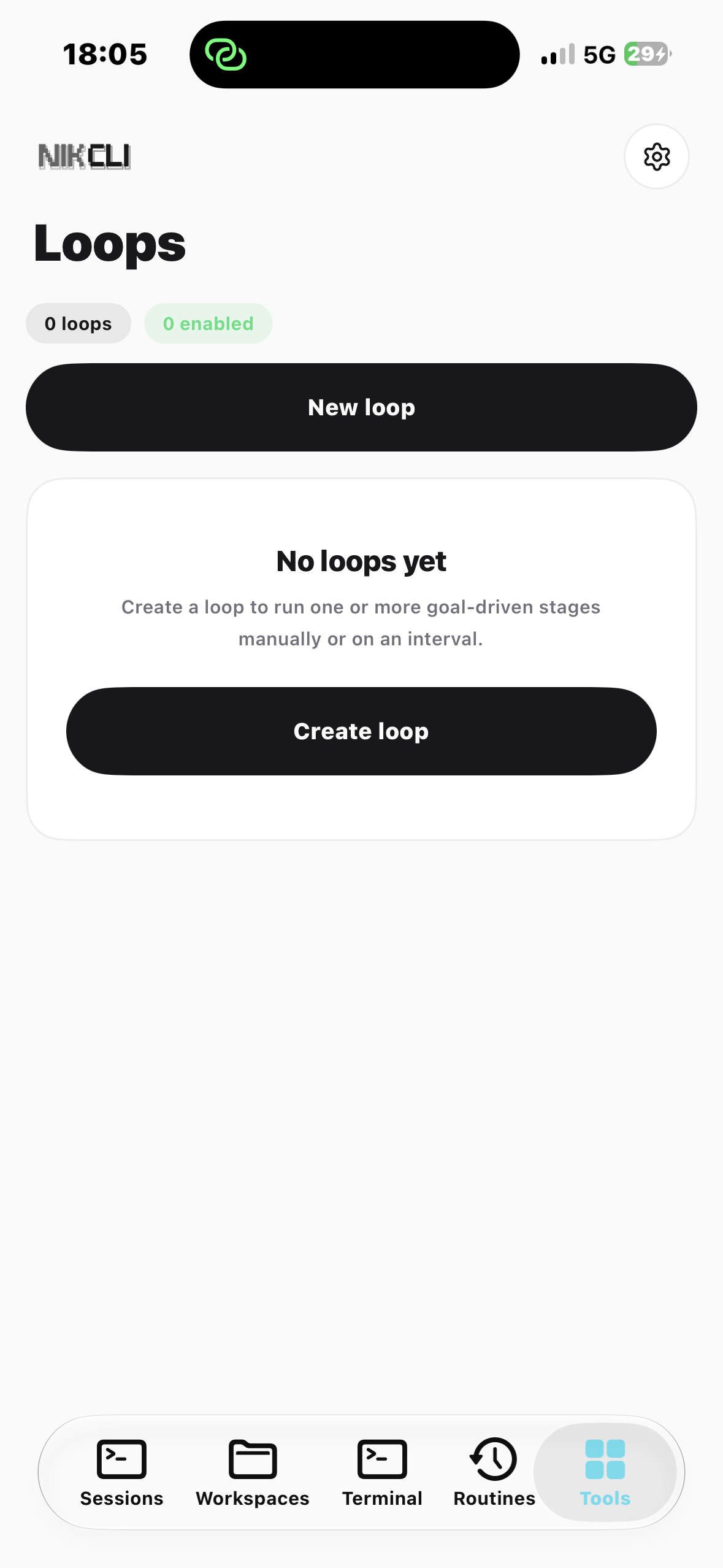
Compose multi-stage workflows.
A loop is a named, persisted workflow that runs an ordered list of stages, each driven
by a single goal command. Loops keep running when the app is closed; the
engine lives in the host process.
The list view mirrors status, schedule, stage chain, and last run; the detail editor handles per-stage agent / model / token budget and an interval or manual schedule.
All screens
Every surface of the mobile app, in one swipeable strip.
Host setup
The app connects to a host process exposing the mobile API. Two commands cover the common
cases. The server binds to 0.0.0.0 by default. For a full cloud / Docker
deployment guide see Deploy as a server.
You can pair the phone without touching a terminal. Inside the interactive TUI run
/mobile (alias /link) to open the Connect Nikcli
Mobile dialog — it handles local LAN pairing, cloud-server pairing, and
session teleport from one menu. See Pair from the TUI for the
full walkthrough.
Start and pair in one step
Use this to start the host and immediately print a pairing token + QR code.
# Local network / Tailscale — no --public-url needed
nikcli mobile serve --pair --pair-name iphone

# Public endpoint (Railway, Fly, etc.)
nikcli mobile serve \
  --hostname 0.0.0.0 \
  --port $PORT \
  --public-url https://your-host.example.com \
--pair --pair-name iphone --pair-expiry-days 90Pair an already-running server
Use this to mint a new token for a server that is already up — e.g. to add a second device.
--public-url is required so the QR encodes the right address.
nikcli mobile pair \
  --public-url https://your-host.example.com \
  --name iphone --expiry-days 90 \
--directory /home/user/projects/myrepo| Flag | Applies to | Purpose |
|---|---|---|
--hostname / --port | serve | Bind address and port. Defaults to 0.0.0.0. |
--public-url | serve, pair | HTTPS URL the app uses from outside your LAN/tailnet. Required for pair. |
--pair | serve | Create a pairing token at startup and print token + QR. |
--pair-name / --name | serve / pair | Label for the generated token. |
--pair-expiry-days / --expiry-days | serve / pair | Optional token lifetime in days. Omit for a non-expiring token. |
--directory | pair | Default working directory encoded into the QR; pre-fills the app's directory field. |
Combined terminal + mobile host
nikcli remote start --mobile starts the mobile host alongside a terminal remote
session (or --mobile-only for just the mobile host) and prints a pairing QR. It
shares the same --public-url, --pair, and pairing flags.
Token management
nikcli mobile token list           # list issued pairing tokens
nikcli mobile token revoke <id>     # revoke a token by ID
Public or LAN-facing hosting requires NIKCLI_SERVER_PASSWORD to be set. The
server refuses to start with a non-loopback address or --public-url unless this
variable is present (or Tailscale auth is active).
Deploy as a server
For phone access outside your LAN you need a publicly reachable HTTPS endpoint running
nikcli mobile serve. The repository ships two Dockerfiles that build a
production-ready image; you can run it on any container host — a VPS, Fly.io, Render,
Google Cloud Run, Kubernetes, or Railway.
Docker images
| File | Use when |
|---|---|
Dockerfile.serve | Recommended. Multi-stage build with arm64/x64 support, a startup
healthcheck, Linuxbrew for agent workflows, and the shared
railway-entrypoint.sh entrypoint.
|
Dockerfile |
Simpler single-stage image with the same mobile-host default command. Useful for quick
local experiments; production deploys should prefer Dockerfile.serve.
|
Both images compile the nikcli binary inside the container, expose port
4096 for the mobile API and 2222 for optional SSH, and default to:
nikcli mobile serve --hostname 0.0.0.0 --port 4096
Persistent state (sessions, config, cache) is written under /data via
XDG_DATA_HOME, XDG_CONFIG_HOME, XDG_CACHE_HOME, and
XDG_STATE_HOME. Mount a volume at /data so restarts and redeploys
keep your data.
Build and run locally
# From the repository root
docker build -f Dockerfile.serve -t nikcli-mobile .

docker run -d \
  --name nikcli-mobile \
  -p 4096:4096 \
  -v nikcli-data:/data \
  -e NIKCLI_SERVER_PASSWORD='choose-a-strong-password' \
  -e PORT=4096 \
  nikcli-mobile \
  nikcli mobile serve \
    --hostname 0.0.0.0 \
    --port 4096 \
    --public-url https://your-host.example.com \
    --pair --pair-name iphone --pair-expiry-days 90
Replace https://your-host.example.com with the HTTPS URL your phone can reach.
--public-url is required for QR pairing from outside the container network.
The --pair flags print a bearer token and QR code in the container logs on first
start — copy them before the process restarts without --pair.
If the container is already running, mint a new token with
nikcli mobile pair --public-url https://your-host.example.com on the host
(or docker exec into the container) instead of restarting with
--pair.
Required environment variables
| Variable | Required | Purpose |
|---|---|---|
NIKCLI_SERVER_PASSWORD | Yes (public) | HTTP basic-auth password for every API request. The server refuses to bind publicly without it (unless Tailscale auth is active). |
NIKCLI_SERVER_USERNAME | No | Basic-auth username. Defaults to nikcli. |
PORT | No | HTTP listen port inside the container. Defaults to 4096. |
NIKCLI_SERVER_CORS_ORIGINS | No | Comma-separated extra origins allowed for browser clients (e.g. your web app domain). |
Optional: restore auth and connectors
The entrypoint (packages/nikcli/scripts/railway-entrypoint.sh) can hydrate
provider keys and connector credentials from base64-encoded JSON before the server starts:
| Variable | Writes to |
|---|---|
NIKCLI_AUTH_JSON | /data/nikcli/auth.json (provider API keys) |
NIKCLI_CONNECTORS_AUTH_JSON | /data/nikcli/connectors-auth.json (Slack, GitHub, etc.) |
Encode with base64 -w0 auth.json (Linux) or base64 -i auth.json
(macOS) and set the result as the environment variable. With a /data volume these
files persist across redeploys even without the env vars.
Optional: SSH into the container
Both Dockerfiles enable an OpenSSH server on port 2222 when you provide an
authorized key:
# Plain text (one or more keys, newline-separated)
NIKCLI_SSH_AUTHORIZED_KEYS="ssh-ed25519 AAAA... you@laptop"

# Or base64-encoded authorized_keys file
NIKCLI_SSH_AUTHORIZED_KEYS_B64="c3NoLWVkMjU1MTkgQUFBQS4uLg=="
Map port 2222 if your platform exposes TCP services (Railway TCP proxy, Fly
[[services.ports]], etc.). SSH is key-only — password login is disabled.
Deploy on any container platform
The same image works everywhere. The checklist is always:
- Build from
Dockerfile.serve(or push to a registry your platform pulls from). - Expose port
4096(or setPORTto match your platform's injected port). - Mount persistent storage at
/data. - Set
NIKCLI_SERVER_PASSWORD(and provider keys via env or volume). - Terminate TLS at the platform edge so the public URL is
https://…. - Start with
--public-url https://your-domainand pair the phone.
Examples for common hosts:
| Platform | Notes |
|---|---|
| VPS / bare metal | docker run as above, or run the binary directly with systemd. Put Caddy or
nginx in front for HTTPS.
|
| Fly.io | fly launch with dockerfile = "Dockerfile.serve", attach a
volume at /data, set secrets for NIKCLI_SERVER_PASSWORD.
|
| Render / Railway / similar |
Point the service at Dockerfile.serve, add a disk/volume on
/data, configure env vars in the dashboard.
|
| Kubernetes |
Deployment + Service on port 4096, PVC mounted at /data, Ingress for HTTPS.
Override CMD to pass --public-url.
|
Example: Railway
The repo includes a convenience script and config for Railway, but the same Dockerfile.serve image is not Railway-specific — it is just one way to publish it.
railway.toml— setsdockerfilePath = "Dockerfile.serve"and mounts/data.script/railway-deploy.sh— builds a minimal upload context (~10 MB), syncs only the packages needed to compile nikcli, and runsrailway up.
# One-time: link the project (railway link)
export NIKCLI_SERVER_PASSWORD='choose-a-strong-password'
export RAILWAY_SERVICE=nikcli-mobile   # override if your service name differs

./script/railway-deploy.sh          # deploy and stream logs
./script/railway-deploy.sh --detach # trigger deploy in background
Railway injects RAILWAY_PUBLIC_DOMAIN; the default container command uses it for
--public-url and auto-pairs on boot. Set
NIKCLI_SERVER_PASSWORD in the Railway dashboard before the first deploy. For SSH,
add a TCP proxy targeting port 2222 and set
NIKCLI_SSH_AUTHORIZED_KEYS.
The Expo app expects a stable https:// base URL. Self-signed certificates and
plain HTTP work only on local development builds — production pairing should always go
through a trusted TLS terminator.
Connect the app
With no saved server, the app opens the Connect screen (root route
/) — a "Secure pairing" card with three fields and a
Validate and continue button.
| Field | Required | Meaning |
|---|---|---|
| Server URL | Yes | Base address of the running host, e.g. https://your-host.example.com. |
| Bearer token | No | Pairing token; sent as Authorization: Bearer … on every request. |
| Default server directory | No | Server path that scopes file/git/session operations; sent as the x-nikcli-directory header. |
Tapping Validate and continue calls GET /mobile/bootstrap with
the entered credentials. On success the config is saved to the device secure store and the app
routes to /sessions if a user token already exists, otherwise to /login.
On failure an inline error banner shows the server's message. On later launches the app
re-pings the saved host and skips Connect automatically when it responds.
Deep link & QR
Scanning the pairing QR opens a nikcli:// URL that pre-fills the Connect fields.
The parser accepts two equivalent forms:
nikcli://connect?server=<url>&token=<token>&directory=<dir>
nikcli://?server=<url>&token=<token>&directory=<dir>| Parameter | Required | Maps to |
|---|---|---|
server | Yes | Server URL |
token | No | Bearer token |
directory | No | Default server directory |
Deep links are handled both at cold start and while the app is open, so scanning with the app
already running also works. URLs with a non-nikcli: scheme are ignored.
Login & accounts
After connecting, the app shows the Login screen. This is a second auth layer: the pairing token authenticates the device to the host, while the user account token authenticates the person and scopes their sessions and data.
The screen calls GET /user/status first. If no accounts exist yet it shows only a
Create account form; otherwise it offers Sign in and
Create account. Sign-in needs email + password; registration needs username,
email, and a password of at least 8 characters (display name optional). A
Remember me toggle (on by default) stores only your email — never the password
or token — and surfaces it as a tappable chip next time.
| Layer | Created by | Sent as | Controls |
|---|---|---|---|
| Pairing token | nikcli mobile pair / serve --pair | Authorization: Bearer + x-nikcli-directory | Device access to the host API |
| User session token | /user/login or /user/register | Managed by the app for user-scoped endpoints | Identity, roles, per-user data |
Both tokens are kept in expo-secure-store (iOS Keychain / Android Keystore), never in plain preferences.
Brand wordmark
The mobile app renders the same nikcli pixel wordmark as the docs site and the dashboard
connect screen. components/layout/BrandMark.tsx consumes
wordmark-dark.png and wordmark-light.png from
assets/ and picks the right variant through useAppTheme().
components/layout/ScreenBrandHeader.tsx wraps the wordmark in a screen-aware
header used by the Sessions, Repos, and More tabs. Width is derived from the requested
height so the image never stretches or squashes.
Read the full asset and theme guide in the brand assets reference — it documents where the source files live, why we keep three PNGs, and how the theme switch is implemented across surfaces.
Sessions list
The Sessions tab is the landing screen. A hero "Operations board" card doubles as the create entry point and a live status summary, with chips for total sessions, busy, retry, GitHub-linked, container-backed, the active provider/model, and the current project.
- Search — a debounced field filters sessions, repos, or branches via the host.
- New session — calls the host to create a session (using your configured execution target: local worktree or container sandbox) and opens it. Title, agent, and model are adjusted from inside the session.
- List items — show title, location (GitHub repo→branch or local path), an IDLE/BUSY/RETRY badge, file and additions/deletions chips, and an Open button.
- Actions — long-press or the overflow button opens a sheet: Open, Abort (when busy), or Delete (optimistic, re-fetches on error).
- Pull-to-refresh reloads the list.
Workspace switcher
components/session/WorkspaceSwitcherSheet.tsx is the bottom sheet opened from
the session header. It lists every workspace the host knows about, lets you pick one, and
forwards the selection as x-nikcli-directory so subsequent calls land in the
right project.
- Active highlight — the current workspace is marked with the accent color and a checkmark.
- Status pill — connected, error, or connecting state mirrored from the host bus event.
- Switch action — sends the new
directory+workspacethrough the SDK, then refreshes the session list and active workspace id in the store. - Refresh — pull-to-refresh re-queries the host workspace list, useful after a fresh
nikcli workspace create.
When the host returns a session without a workspace id, the app falls back to the saved
directory through sessionWorkspaceFallback() in
lib/client.ts, so legacy sessions still load cleanly.
Chat & composer
Inside a session the screen is a scrollable transcript above a fixed composer. The transcript auto-follows new output while you are near the bottom; scrolling up pauses auto-follow.
Composer
The composer capsule grows from 2 to 6 lines and exposes a toolbar:
- Paperclip — attach files (staged and sent as data-URL file parts).
- Terminal icon — open the command palette (grouped: View, Session, Compose, GitHub, Memories, Presets, Skills, MCP, Subtasks, Commands).
- Git branch icon — open the Git review panel.
- Plus — open the tool drawer (models, skills, tools, MCP servers).
- Plan / Code toggle — a sliding segmented control.
- Model label pill, optional MCP N badge, character count, and Send / Stop button.
Plan vs code mode
In Plan mode the host is asked to analyze and propose an approach without making changes until you confirm; in Code mode the message is sent as-is. The mode can be switched mid-session and its default is set in Settings.
Slash commands & sending
Typing / shows up to five matching commands with SKILL / MCP / TASK / arg badges;
tapping inserts the command. Plain messages stream the assistant reply over SSE
(/mobile/session/:id/stream) with reasoning, text, tool cards, and — when present —
a per-message cost and token count. The chosen model is only sent on the first message so the
host keeps its running model afterward. If a send fails offline, the input is restored and the
operation is queued for the next foreground.
Tool calls
Each tool call renders as a collapsible card whose status dot cycles pending → running → completed/error as stream events arrive. The collapsed header shows a status dot, a tool-specific icon (terminal, file, folder, search, globe, or wrench), the tool name and title, a status pill, and an elapsed-time badge.
Expanding the card reveals the Input key/value pairs and the Output (or Error) — truncated to 400 characters with a "Show all" toggle and a Copy button for the full text.
Approvals & permissions
The app surfaces two approval flows that map to the host permission system: tool-execution permission requests and structured question requests.
Permission cards
Pending permissions render above the transcript with the requested permission, an optional description, command/path scope chips, the matching glob patterns, and three actions — Reject, Allow once, Always allow. A compact approval bar above the composer mirrors these actions and lets you page through queued requests.
"Always allow" is scoped to the current project on the host and is written to
permission/:projectID in the JSON storage layer (see
Permissions → Always approvals). Rules
survive host restarts, but are not shared across different project directories
on the same host.
Questions
Question requests show the prompt and option pills. Single-select submits on tap; multi-select uses checkboxes and a submit arrow. A reject button dismisses the question. New permission and question events also fire a local notification (deduplicated) and a haptic.
Files & diffs
Patch diffs
When an assistant message includes a patch, a "Load diff" button fetches the file diffs and
renders one collapsible card per file with an added/deleted/modified badge and
+N / -N counts. Expanding shows a syntax-tinted line diff (additions green,
removals red, context muted).
File explorer
The folder icon in the session header opens the Repository tree for the session's workspace: a filterable file tree with git status markers (A / M / D), workspace text search (ripgrep-backed), fuzzy filename filtering, expand/collapse, and stat chips for files, dirs, open, and changed.
Editor
Tapping a file opens an in-app editor with syntax highlighting, find-in-file (with case toggle and match navigation), word-wrap, copy, and a View/Edit toggle (large files over ~5,000 lines open read-only). Edits are tracked locally; Save writes the file back to the host, and leaving with unsaved changes prompts to Save, Discard, or Cancel.
Session artifacts
lib/session-artifacts.ts extracts inline previews from assistant messages so the
chat surface can render URLs, HTML, SVG, and Mermaid diagrams without leaving the app. The
top queue banner (SessionQueueBanner) summarizes queued offline messages, and
every artifact link is queued the same way when the device is offline.
| Kind | Source | Rendered as |
|---|---|---|
url | First https?:// link in a message (filtered against well-known hosts). | Inline link card with title, host, and an Open button. |
html | html / iframe fenced code block. | Inline preview through a sandboxed WebView. |
svg | svg fenced code block. | Inline SVG, with a Copy SVG action. |
mermaid | mermaid fenced code block. | Inline Mermaid render with a Copy source action. |
Hosts like github.com, npmjs.com, and
developer.mozilla.org are excluded from URL previews — they appear as text
links, never as the "your running app" card.
Repos & GitHub
The Repos tab is a unified workspace portfolio: the server worktrees the host knows about, and the GitHub repos from your connected account. A summary card shows live counts, the active worktree, the execution target, and your GitHub login.
GitHub browsing, import, and launch require GitHub to be connected (OAuth device flow or a personal access token in Settings → GitHub). Until then the GitHub section shows a "Connect GitHub first" empty state.
- Server worktrees — tap a worktree to make it the active directory (forwarded as the
x-nikcli-directoryheader). The active one is highlighted. - New sandbox — provision a fresh isolated server worktree before starting a task.
- Import a repo — "Import only" clones the repo to the host and sets it active without creating a session; "Use repo" switches to an already-imported clone.
- Guided launch — "Configure session" loads branches and opens a 3-step wizard (repo → branch → launch) to create a worktree and session in one go via the host GitHub API.
Git review
Git operations are exposed through the Git review panel launched from a session: view status and diff, browse commits and branches, stage/unstage/discard files, commit and push, and — for GitHub-backed sessions — publish a pull request or clean up the worktree. A status bar widget shows branch, staged/unstaged/untracked counts, and ahead/behind. Discard affects only tracked files.
Routines
The Routines tab is a full create/read/update/delete interface for saved prompts that run as
sessions — on a cron schedule, via an HTTP webhook, or on demand. The list shows active/paused
counts; each row shows the name, a prompt preview, a status chip, a trigger summary (cron and/or
API, or "manual only"), the last-run time, and Run now /
Edit buttons.
The detail screen edits everything:
- Name and Prompt (both required).
- Schedule — preset chips (@hourly, Every 6h, @daily, @weekly) or a custom cron expression, with an enable/disable toggle.
- API trigger — shows the endpoint
POST /mobile/routines/trigger/<token>(no bearer token needed) with an enable/disable toggle. - Run now / Pause / Resume / Delete, plus a link to the last run's session.
The API trigger token is assigned by the host when the routine is created with
--api / --api-token. Everything here is also available via
nikcli routine — see Routines.
Loops
The Loops tab exposes the headless Loop engine from the phone.
A loop is a named, persisted workflow that runs an ordered list of stages, each driven by
a single goal command. Loops keep running when the app is closed; the engine
lives in the host process.
The list view shows every loop with:
- Status chip — idle, running, paused, error, or cancelling, mirrored from the host bus event.
- Schedule summary —
Every 30m,Every 1h, … for interval loops;Manualfor trigger-only loops. - Stage chain —
triage → draft-fix → reviewpreview of the ordered stages. - Last run — relative time of the previous run, or
Never run. - Quick actions — Run now, Pause/Resume, Edit, Delete.
Detail screen
Tap a loop to open the detail screen. It edits everything in the definition:
- Name and per-stage objective, agent, model, and token budget.
- Schedule — interval string (
30s,10m,1h,1h30m,1d) ormanual, with an enable/disable toggle. - Per-stage editor — add, remove, and reorder stages with an inline form.
- Run history — the last 50 runs with status, duration, and a deep link to the active stage's session.
- Run now / Pause / Resume / Delete, with confirmation sheets for destructive actions.
The duration parser accepts bare numbers (treated as minutes) and Nd/Nh/Nm/Ns
tokens, including combinations such as 1h30m. The same parser is used by the
loop detail editor and the nikcli loop create --every flag.
Terminal
The Terminal tab opens fully interactive PTYs running on the host — you can type commands, use arrow keys, run editors, and see color output. Each tab is a terminal emulator in a WebView connected to the host over a WebSocket; the auth token and active directory are passed as query parameters (WebSockets can't send custom headers), and resizes are synced back to the server PTY.
- Multiple tabs stay connected in the background; only the active one is visible.
- Toolbar shows the working directory and offers Copy (selection or visible text), Paste (sends clipboard into the PTY), New tab, and Close all.
- Reconnect — up to five automatic retries before a "Connection Failed" overlay with a Retry button.
- Key bar (
components/terminal/TerminalKeyBar.tsx) provides one-tap shortcuts for Tab, Ctrl-C, arrow keys, and a configurable "extra" key (often Escape) on small screens. - Key strip (
TerminalKeyStrip.tsx) is a compact alt-row used when the soft keyboard is hidden, derived fromlib/terminal-keys.ts.
The PTY runs on the host (no local shell on the device), and tab state is not persisted across app restarts — though host PTYs may keep running until they time out or are cleaned up.
Teleport
nikcli teleport ships a session (and optionally the working tree) to a remote
nikcli host so you can pick it up from your phone. The CLI archives the session messages,
uploads them through POST /mobile/teleport, and the remote host re-hydrates the
session in its own storage.
# Pick the most recent session and ship it to a remote host
nikcli teleport --url https://my-host.example.com --token <mobile-token>

# Ship a specific session, including the source files (no binaries)
nikcli teleport ses_abc123 \
  --url https://my-host.example.com \
  --token <mobile-token> \
--content --git=false --saveTeleport sheet
From the session header overflow menu on mobile, Teleport to… opens
components/session/SessionTeleportSheet.tsx. The sheet prefills the last
successful URL + token from lib/storage.getTeleportTarget(), so repeat teleports
are one tap.
| Flag | Default | Meaning |
|---|---|---|
--url | saved / env | Remote host base URL. Saved to nikcli.json with --save. |
--token | saved / env | Mobile bearer token for the remote host. |
--content | true | Clone the working tree (source files only) into the archive. |
--git | false | Include the full .git history. Large; off by default. |
--save | true | Remember the URL + token for next time. |
The CLI strips trailing slashes and any /mobile or /mobile/teleport
suffix before posting, so the QR-encoded https://host/mobile form and the bare
https://host form both work.
Settings
Settings is a single scrollable control plane; each section can be shown or hidden per device from Appearance. Some areas open dedicated sub-screens. This is where you manage everything the host exposes.
| Area | What you manage |
|---|---|
| Models / Providers | Browse the host provider catalog, pick a default model for new mobile sessions, and save or remove provider API keys on the host. |
| GitHub | Connect via OAuth device flow (or save the OAuth client ID), view the connected login, disconnect, or save a manual ghp_… token. |
| MCP | Add remote (URL) or local (command) MCP servers; enable/disable, connect, authenticate (browser), or clear auth, with live status chips. |
| Connectors | Save/remove credentials for Figma, Slack, Discord, Microsoft Teams, Linear, Lovable, and Google Chat. Stored on the host. |
| Skills | Browse the host skill registry (sources: .nikcli, .claude, .agents) with name, category, version, and tags. |
| Agents | Browse built-in and custom agents with their tools and IDs; the default agent is marked. |
| Commands | Add/edit/remove host slash commands (template, optional agent/model override, subtask flag); manage local prompt presets and composer defaults. |
| Memories | Add/remove reusable host-backed snippets and browse recent prompt history. |
| Tokens | Create long-lived mobile bearer tokens (name + expiry), copy them once, view last-used/expiry, and revoke instantly. |
| Plugins | Save API keys for Codex (openai), Cursor, and GitHub Copilot on the host. |
| Connection | Server URL, bearer token, default directory; Save connection, Forget server, Sign out. |
| Execution | Execution target: local worktree (default) or container sandbox (when Docker/Podman is available). |
| Git identity | Per-host Git user name and email used by Git operations from the mobile app (commit, push, publish PR). Backed by the host git_identity config. |
| Teleport defaults | Default remote URL + token for the session teleport sheet. |
Provider and model defaults flow through lib/model-catalog.ts and
lib/model-preferences.ts. The catalog is fetched once per host connection and
cached, while preferences are stored locally so the composer can preselect the right model
even before the network round-trip completes.
Profile & account
The Profile screen shows your identity (avatar, display name, @username, email,
role, member-since), account stats, and an edit form for display name and password. Admins
additionally get a User management list to promote/revoke admins and delete
accounts. A Sign out action (with confirmation) ends the session.
Deleting a user from the admin panel removes the account permanently on the host and cannot be undone.
Notifications & Live Activities
Notifications are off by default. Enable them in Settings → Interaction → Notifications; the app requests OS permission on enable. Three kinds gate on individual toggles:
| Kind | Toggle | Fires when |
|---|---|---|
sessionReady | Session ready | A session goes idle / ready for the next command. |
permissions | Permission requests | A session is waiting for an approval. |
failures | Failures | A session enters an error state. |
Notifications are suppressed while the app is foregrounded and deduplicated within an 8-second
window. Android uses a dedicated nikcli-mobile channel. On iOS 16.2+ the app drives
Live Activities that show session state on the Lock Screen / Dynamic Island,
with a color tone derived from state (attention for approvals, countdown for retries, editorial
for GitHub publish/cleanup, work for running). Activities deep-link back into the session and are
reconciled on app foreground. Live Activities are iOS-only.
Offline behavior
When a send can't reach the host, the message is queued locally (in secure storage) and replayed automatically the next time the app returns to the foreground. The queue is capped at 50 entries (oldest evicted) and drained with per-operation retry — successful sends are removed, failures stay for the next attempt.
Session queue
lib/session-queue.ts plus components/SessionQueueBanner.tsx give the
user visible feedback about pending offline work: a banner shows how many messages are
queued and whether the next send was deferred. The banner appears on every screen that
consumes the same session id and disappears automatically once the queue drains.
lib/offline.ts watches the device's network status. When the connection
drops, new sends are queued without surfacing an error; reconnecting drains the queue
without user action.
Themes & preferences
Settings → Appearance offers a color mode (System, Light, Dark) and a color theme picker with 100+ named themes (Nikcli default, plus Nord, Dracula, Tokyo Night, Catppuccin, Gruvbox, Solarized, GitHub, One Dark, Kanagawa, Rose Pine, and many more). Mode and theme apply instantly and persist on the device.
Other persisted preferences you can manage in Settings include:
| Preference | Default | Where |
|---|---|---|
| Notifications (master + per-kind) | Off / on per kind | Interaction → Notifications |
| Haptics (master + send/commands/permissions/errors) | On | Interaction → Haptics |
| Message gestures (swipe / long-press) | On | Interaction → Message gestures |
| Composer default mode | Code | Commands → Composer defaults |
| Auto-follow transcript | On | Commands → Composer defaults |
| Slash suggestions | On | Commands → Composer defaults |
| Visible settings sections | All visible | Appearance |